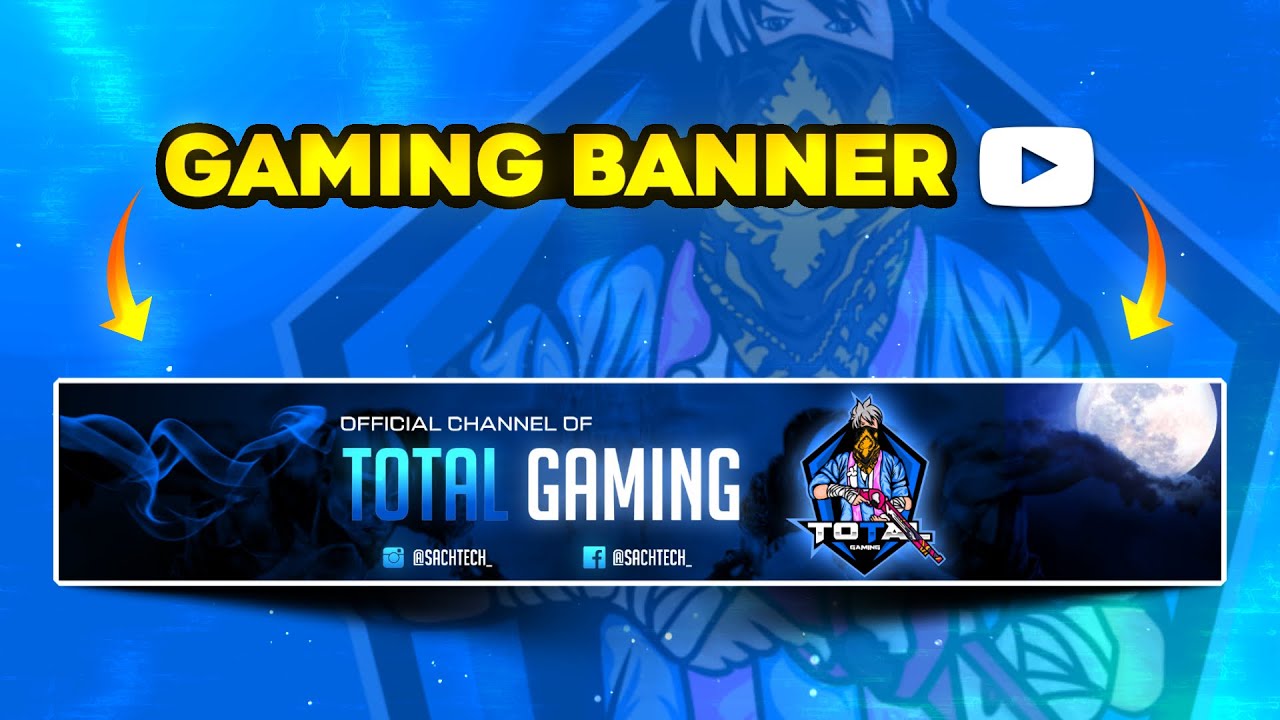
Are you looking to make an awesome gaming banner for your Free Fire YouTube channel but don’t know where to start? Good news — this beginner-friendly guide will show you how to create a stunning banner using free tools and a ready-to-use template pack. Whether you’re new to editing or just want a quick solution, you’ll find everything you need here to level up your channel’s look.
What is a Free Fire Gaming Banner?
A gaming banner is the large image shown at the top of your YouTube channel. It gives your viewers a first impression and shows your channel’s style. A Free Fire banner usually includes your logo, game elements, social handles, and a bold design.
Why You Should Try This
- It makes your channel look professional
- You don’t need advanced design skills
- You can use free apps like Pixellab or PS Touch
- It only takes 15–30 minutes to make
- You’ll stand out among other creators
Tools You’ll Need
You don’t need a PC or expensive software. Just use these mobile-friendly apps:
Recommended Apps
- Pixellab (Android)
- PS Touch or Photoshop CC Mobile
- Canva (for optional text styles)
- CapCut or Kinemaster (for adding intro/outro if needed)
Materials You’ll Need
To get started, make sure you have these files ready (all included in the pack below):
- Banner Frame
- High-Quality Background
- Mascot Logo PNG
- Stylish Fonts
- Moon PNG
- Social Media Buttons
- Extra PNGs (light flares, particles, etc.)
🎁 Free Pack Download
I’ve made a complete banner editing pack just for you!
All files are organized, labeled, and beginner-friendly.
Step-by-Step Guide to Make Your Banner
Step 1: Install Pixellab or PS Touch
Open the app and set your canvas size to 2560 x 1440 px (YouTube’s banner size).
Step 2: Add the Background
Import the banner background image from the pack. Stretch it to fit the canvas.
Step 3: Insert Banner Frame
Place the banner frame over the background. Center it properly.
Step 4: Add Your Mascot Logo
Choose a mascot logo from the pack or use your own. Resize and place it on the left or center area.
Step 5: Insert Text and Fonts
Write your channel name using one of the included fonts. Use bold, clean styles for best visibility.
Step 6: Add Decorations (Moon PNG + Effects)
Use the moon PNG and particle effects to give your banner a dreamy or sci-fi look.
Step 7: Include Social Buttons
Drag and place Instagram, YouTube, or Discord icons from the pack onto your banner.
Step 8: Export in High Quality
Save your banner in PNG format with high resolution.
Video Tutorial
Paid Services (Optional)
- Custom logo design
- Professional YouTube thumbnails
- Unique shorts overlays
- Full branding pack for your gaming channel
👉 DM us on Instagram: @sachtech_
👉 Or Email: Sachu73700@gmail.com
Common Mistakes to Avoid
- Wrong banner size – Always use 2560×1440 px.
- Too much text – Keep it clean and readable.
- Poor logo quality – Use PNG format with transparency.
- Overediting – Don’t clutter with too many effects.
Pro Tips for Better Banners
- Use drop shadows behind text for better visibility.
- Stick to 2–3 main colors for a clean design.
- Make sure your logo is the main focus.
- Preview your banner on YouTube before uploading.
Creative Ideas & Use Cases
- Use different mascot styles for each video series.
- Add “Live Now” tags for streaming channels.
- Include your schedule (e.g., “New Video Every Sunday”).
- Match your intro, outro, and thumbnails to your banner style.
Need Help? Try Our Paid Services
If you’re struggling to create your banner or want a professional look, we can help. We offer custom services:
- Logo Design
- YouTube Banner
- Intros & Outros
- Full Stream Package
- Overlay Creation
- Gaming Thumbnails
📩 Contact us on Instagram: @sachtech_
📧 Email: Sachu73700@gmail.com
Conclusion
In this article, you learned how to create a cool Free Fire gaming banner using free tools and my custom banner pack. If you followed all the steps, your YouTube channel should now look more professional and ready to grow. Keep practicing, try different styles, and don’t be afraid to experiment!