Are you struggling to make your YouTube channel look professional? Want a stylish banner that stands out without spending hours designing it from scratch?
You’re in the right place! In this guide, we’ll walk you through how to create a 3D text banner for your YouTube channel, step by step. We’ll also give you a free banner template pack and share tips, tools, and pro advice to help you get started—even if you’re a complete beginner.
What is a 3D Text Banner for YouTube?
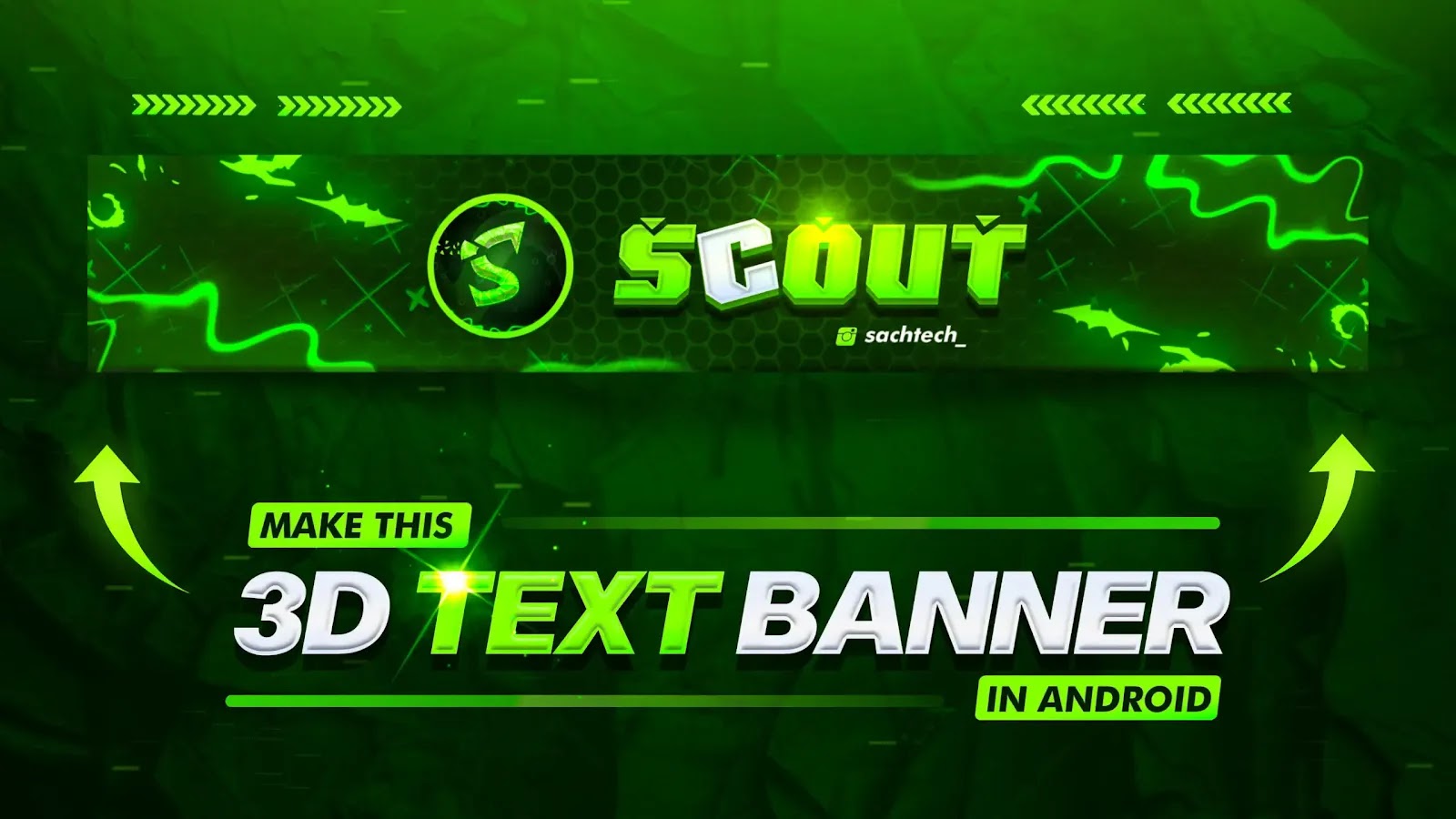
A 3D text banner is a high-quality YouTube channel banner that uses 3D-style fonts and effects to grab attention. It usually features your channel name in bold 3D letters, along with colors, shadows, and background graphics to give it a polished, professional look.
These banners help you:
- Make your channel look attractive
- Show your branding clearly
- Improve viewer trust and engagement
Why You Should Try This
Creating a custom banner may sound hard, but with the right tools and template, it’s super easy! You don’t need to be a designer or learn complex software. Just follow a few steps, and your channel will look 10x better.
Benefits of using a 3D banner:
- Makes your channel stand out from others
- Increases the chance that people subscribe
- Looks professional without spending money on design tools
Tools Needed to Edit the Banner
To edit the banner easily, you’ll need one of these apps (most work on mobile):
Recommended Tools:
- Pixellab (Beginner-friendly and great for text effects)
- Photoshop Touch (PS Touch) – Light version of Photoshop for mobile
- Photoshop CC – For PC users who prefer advanced editing
- Canva – For simple drag-and-drop editing (web and app)
- Kinemaster or CapCut – If you want to use this banner in videos
Choose the one that suits your comfort level. Pixellab is the best option if you’re just starting out.
Free 3D Banner Pack Download
We’ve created a free banner template pack for you to download and customize.
✅ What’s inside the pack:
- 3D text-style templates
- Background PNGs
- Fonts used in the template
- Social media icons
- Editable PSD (for PS Touch/Photoshop CC)
- Pixellab
.plpfile (for quick editing)
How to Use the Banner Template (Step-by-Step Guide)
Here’s a simple guide to help you use the template and make your banner in less than 15 minutes:
Step 1: Download the Pack
Click on the download link and unzip the folder.
Step 2: Choose Your Editing App
Open the files in Pixellab, PS Touch, or your preferred tool.
Step 3: Insert Your Channel Name
Replace the sample text with your channel name. Use bold, clean fonts to make it pop.
Step 4: Add Your Logo (Optional)
If you have a logo, place it in the top or bottom corner for branding.
Step 5: Adjust Colors and Background
You can change the color of the 3D text and background to match your channel theme.
Step 6: Export in YouTube Banner Size
Export the banner in 2560 x 1440 resolution. Keep the “safe area” (1546 x 423) for text and logos.
Video Tutorial
Common Mistakes to Avoid
Don’t let small errors ruin your hard work. Avoid these common mistakes:
- Wrong image size – Always use the correct YouTube banner dimensions.
- Text outside safe zone – Your channel name might get cut off on mobile.
- Too much clutter – Keep the design simple and readable.
- Low-quality exports – Always save in high resolution.
Pro Tips for a Better Banner
Want your banner to look extra sharp? Here are a few pro tips:
- Use shadows and lighting effects for depth.
- Match your color scheme with your logo and thumbnails.
- Keep your fonts bold and readable—especially on small screens.
- Add social icons subtly at the bottom right.
- Try gradient overlays for a modern feel.
Creative Ideas & Use Cases
You can use the 3D text banner in multiple ways, such as:
- Main YouTube channel art
- Intro and outro scenes for videos
- Promotional posters
- Community posts
- Live stream overlays
Mix it with other graphics for a complete branding pack.
Need Help? Try Our Paid Services
If you want a unique design or face any trouble while editing, we’ve got your back.
We offer affordable and fast graphic design services for YouTube creators. Here’s what we can do for you:
- Custom logo
- Eye-catching banners
- Smooth intros/outros
- Stream overlays and packages
- High-quality thumbnails
You can place an order by messaging us on Instagram or email.
Instagram: [YourHandle]
Email: [YourEmail@example.com]
Conclusion
We hope this guide helped you learn how to create a 3D text banner for your YouTube channel. With the free pack and simple steps, you don’t need to be a pro to make your channel look amazing.
Don’t forget to download the template, follow the steps, and try it yourself. If you liked this post, share it with friends and explore more tutorials on our blog.
Follow Us for More
Want more editing packs and free YouTube resources? Follow us on Instagram and stay updated with the latest tools, tricks, and designs for creators like you.
Legal Note (DMCA)
All our posts, templates, and graphics are protected under the DMCA. Copying or redistributing our content without permission is strictly prohibited and may result in legal action.